
I had a meeting with some new friends recently to see if I can help them with their outreach. They need to put in place a website, social media channels, and a few other components. One of the two was in the process of writing a book longhand; if you are a writer, you can imagine my instant admiration!
I draft most of what I post – like this blog post – in Microsoft® Word or in the WordPress editor itself. If you use Word, you’ll be familiar with some of the writing tools it offers. As Microsoft updates their apps all the time, you may not be aware of a few newer tools available in Word. In this article, I’ll talk about three great writing tools in Microsoft Word, as well mentioning a few lighter, slimmer productivity apps.
Please note that some of the links used in this post are affiliate links. That means if you click one of the links, whether for a paid or free app, I may get a small commission.
Three Great Microsoft Word Writing Tools
I’m drafting this article in Microsoft® Word for Office 365. (Note there are several versions of Office, and the link that follows will take you to the Canadian site for the Personal version of Office.) Perhaps like many of you, I have a subscription for Microsoft® Office 365®. This served me very well when I taught college students how to use Office, and, relevant to this post, while blogging.
- Editor – Yes, this formerly was called Spelling & Grammar. The button is in the same place (the Review group on the Ribbon), but it’s now labeled Check Document. Click the button and the Editor pane pops up on the right, as seen in the screen capture below.
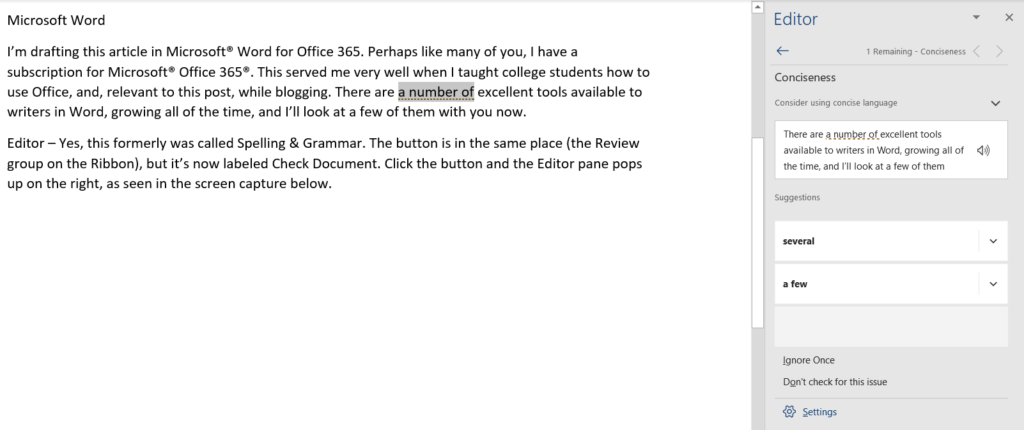
How is Editor different than Spelling & Grammar? It looks for “spelling, grammar, and stylistic issues,” marking them with red, blue, or gold respectively. According to Microsoft “the Editor pane helps you understand suggestions so you can make choices that improve your writing.” I agree that it’s a better tool, and as you can see above, it caught me on an issue of conciseness. If you’re not seeing Editor, try File > Options > General and then turning on Office Intelligent Services. If you’re still not seeing it, it could be that your copy of Office needs to be updated. This is usually done at the same time Windows 10 updates are done. If that isn’t happening, check out this Windows Update: FAQ page from Microsoft.
 Focus Mode – The capture to the right shows the Focus Mode button on Word’s status bar. What happens when you click it? Totally distraction-free writing! All you will see is a white background; no Ribbon, no buttons. Press the Esc key to return to the view you were using beforehand.
- Office Dictation – I dictated this sentence, rather than type it. While the results of dictation have been spotty at best, things are getting better and more accurate all the time. Like many writers, I often think or ‘speak’ my thoughts out before typing them. Since the Office Dictation button is prominently displayed on the right side of the Ribbon in the Home group, I have tried it out a few times. It does a good job, and in the case of the sentence above, no editing was needed. (In case you are interested, I dictated “comma” and “period” and the feature knew what to do with that.)
 Focus Mode – The capture to the right shows the Focus Mode button on Word’s status bar. What happens when you click it? Totally distraction-free writing! All you will see is a white background; no Ribbon, no buttons. Press the Esc key to return to the view you were using beforehand.
Writing Add-Ins for Microsoft Word
For quite a long time, I used the Grammarly for Microsoft® Office Plug-In. A Plug-In, Add-In, or Add-On is a tool that works seamlessly inside your software program. You download the Add-In, give it permissions, and restart your program. Once I had been exposed to the ProWritingAid tool, I found it to be much more ‘complete’, albeit more complicated.
Alternatives to Microsoft Word for Office 365
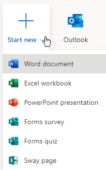 Some of you might be saying (or asking): what about the free version of Microsoft Office? Yes, there is one, and yes, it’s robust in its features. It’s called Office on the web (or Office Online). While you will need a Microsoft Account (free as well) to login, start your journey with this Microsoft website (for the US ), or this Microsoft website for Canadian users. The screen capture to the left shows you a shortcut menu of just a few of the free apps I can use online using Office on the web.
There are alternatives to Word and Office, and yes, some are offered through the Windows Store. Word Editor For Windows 10 is a free download available in both the Canadian and US versions of Windows Store. However – and this is important – while you can do in this Word-like app much of what you can do in, say, Word Mobile (available from the US Store), to be able to save your documents, you need to pay for the app; it’s a little less than $7 USD. The app creator is not hiding anything, and while the app is free to use, they need to make their money somehow and that’s how they do it. I think it’s a pretty good deal. Note that Word Editor For Windows 10 is not a Microsoft Program. Another alternative to using Microsoft apps, and it too is available through the Microsoft Store, is something called Trio Office. Created by GT Office PDF Studio, it’s a handy collection of Microsoft Office-like apps for creating documents, presentations, spreadsheets, and much more. I have only begun to test this, but saving files is included for free. Office Writer, the Word-like app, seems very full featured and allows you to save files in many other formats aside from its default Open Document Format (ODF).
I’m sure many of my readers are familiar with Google’s offerings for creating free files of various kinds, and I will be discussing it in a future post.
In Summary
Whether you’re a dyed-in-the-wool hardcore Microsoft Word user/fan, a typewriter user (I love old typewriters), a user of Windows Notepad, or write in longhand, at some point you will need to put words to keyboard, and when you do, you’ll want to make use of some decent writing tools.



Recent Comments